Restaurant POS and Kitchen Hardware: Buying Checklist and Backup Plan
A practical buying and deployment checklist for restaurant POS terminals, ordering tablets, payments, printers or KDS, network equipment and tested backup routes.
- Bahram Davoodi
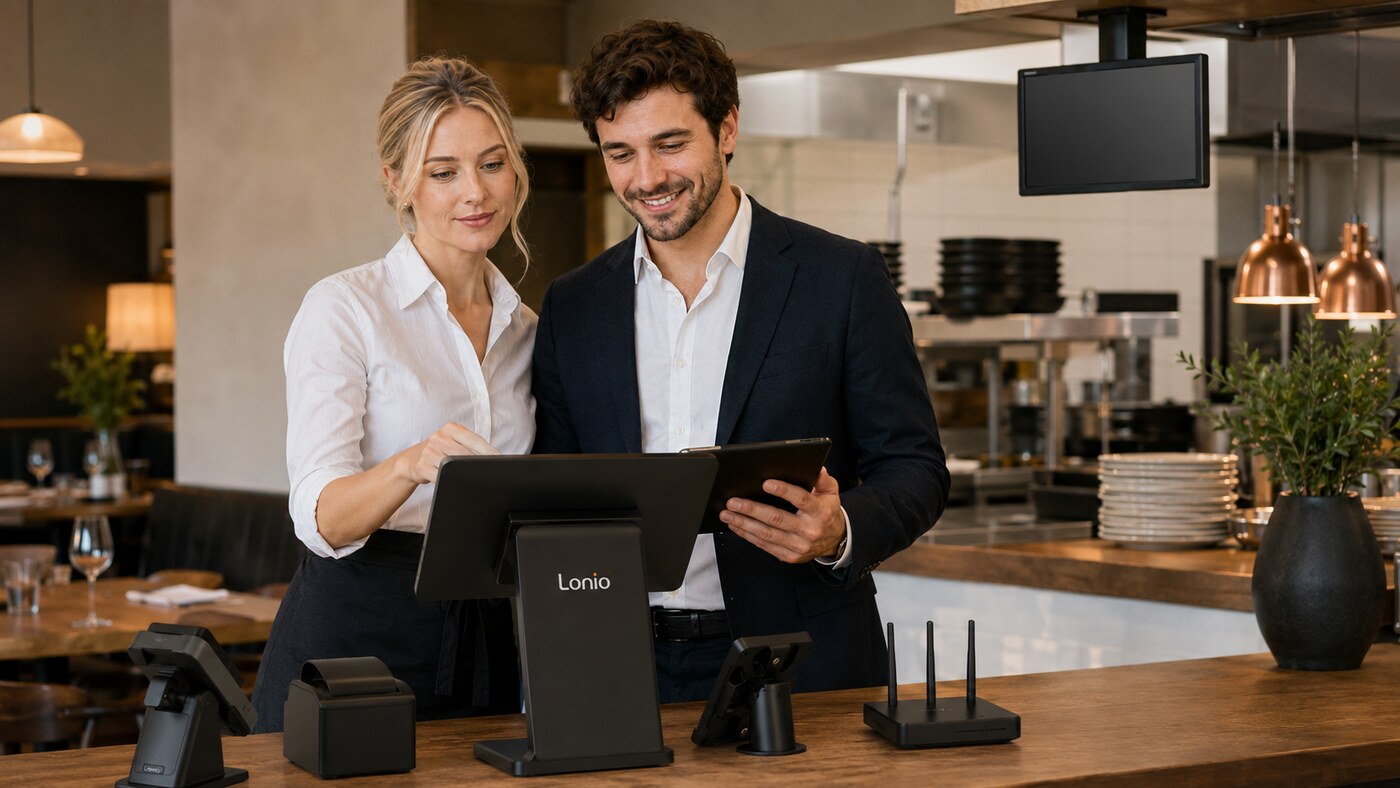
Good restaurant software can still become a bottleneck when the hardware around it is slow, poorly placed or unreliable. A weak Wi-Fi signal can delay table orders, an unsuitable kitchen printer can lose tickets, and a payment terminal with no verified integration can force staff to enter amounts twice. Hardware selection should therefore begin with the real workflow: where orders are entered, how many preparation stations exist, where payment happens and what the team does when one device fails.
Core POS hardware
Fixed POS terminal or touchscreen computer
A fixed terminal is usually the main checkout point. The display should remain readable in the restaurant's lighting, touch input should be accurate and the housing should tolerate long daily use. Before buying, check available ports, wired-network support and compatibility with receipt printers, cash drawers, customer displays and any required accessories.
Tablet or mobile ordering device
A mobile device lets servers enter orders beside the table. Weight, battery life, protective cases, charging arrangements and real Wi-Fi coverage matter more than appearance. For terraces and outdoor areas, screen brightness, drop protection and temperature tolerance become more important. Test the device in the actual room before standardising it across the team.
Receipt and kitchen printers
Receipt printer
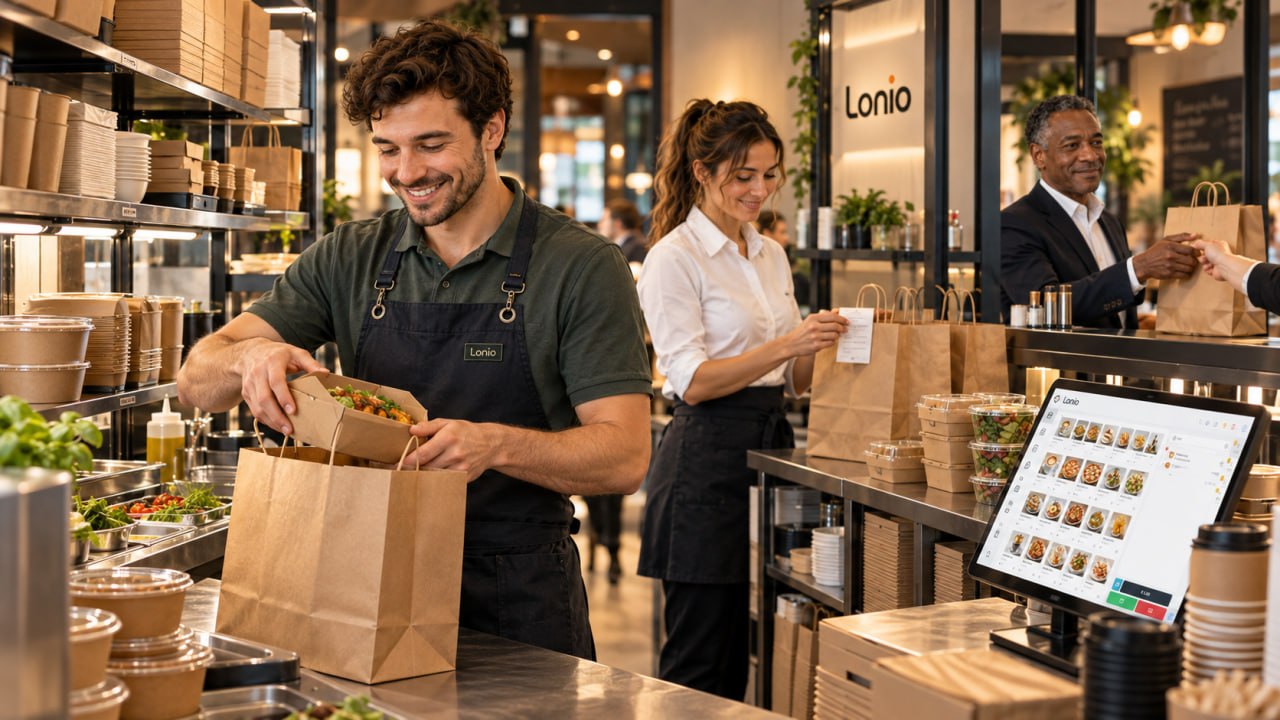
The receipt printer usually sits at the till and may also trigger the cash drawer. Review print speed, paper width, connection type, cutter reliability and how easily staff can replace a roll. Place it where cables are protected and daily maintenance is simple.
Kitchen printer
A kitchen printer must cope with heat, humidity, grease and a noisy environment. Tickets need to show item, quantity, table or order number, time and preparation notes clearly. In a multi-station kitchen, each printer should receive only the items relevant to that station, otherwise duplicated or irrelevant tickets create confusion.
Kitchen display system or kitchen printer?
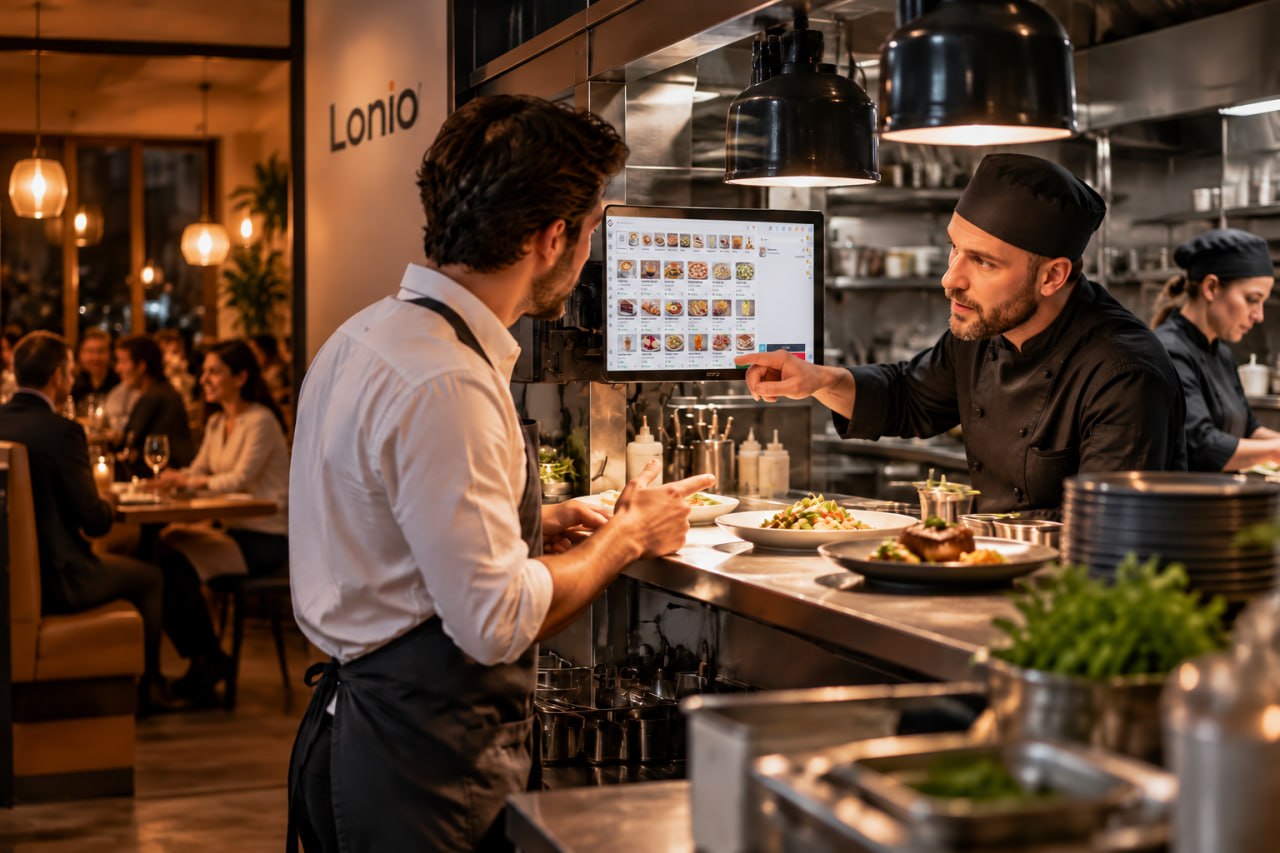
A KDS presents orders as a live queue and can move them from new to preparing and ready. It is useful for multi-station coordination and production-time analysis, but it depends on a suitable screen, safe mounting, power and stable network coverage. A printer is simpler and may be easier to understand during a short outage. Some restaurants use the KDS as the main workflow and keep a printer as a tested fallback.
Card terminals and pay at table
The payment terminal must fit the operating model. A mobile terminal needs dependable battery life and coverage when payment happens at the table. With a verified POS integration, the amount may be sent automatically and the transaction result returned to the order. Do not assume every terminal or payment provider connects to every POS version. Confirm the exact provider, model, software version and supported transaction types before purchase.
Cash drawer
Restaurants accepting cash need a robust, lockable drawer sized for the local mix of notes and coins. Opening should preferably be linked to a transaction or authorised action so unusual openings can be reviewed. The drawer must be accessible to the operator but protected from customers and passing staff.
Customer display
A customer-facing display can show items, totals, discounts and the remaining balance. This improves transparency and can reduce disputes at payment. Depending on the supported setup, it may also present a digital-receipt QR code or loyalty information. Treat these as configuration-dependent features, not assumptions.
Network and internet design
Many problems blamed on the POS are actually local-network problems. Separate guest Wi-Fi from the operational network, measure coverage in the kitchen, terrace and payment areas, and connect fixed devices by Ethernet where practical. The router, switches and access points need enough capacity for the number of simultaneous devices. Document device names and network locations so a replacement can be configured quickly.
Backup power and cable management
A short-duration UPS for the router, network switch and main POS can prevent an immediate shutdown during a brief power interruption. Label cables and keep them away from water, heat and walking routes. Store spare power adapters, network cables and paper rolls in a known place, and make one person responsible for checking them.
Suggested setup by business size
Small café
- One POS terminal or tablet
- One receipt printer
- One card terminal
- A cash drawer when cash is accepted
- A secure and stable operational network
Medium restaurant
- Main till plus one or more mobile ordering devices
- Receipt printer and kitchen/bar printers or a KDS
- Mobile payment terminal
- Customer display where useful
- Separated network and UPS for essential devices
Large or multi-station restaurant
- Several terminals and ordering devices
- Separate KDS screens for production stations
- Tested backup printer
- Several payment terminals
- Professionally managed network and spare devices
- Device monitoring and replacement schedule
Pre-purchase checklist
- Map the order and payment flow.
- Estimate concurrent users and transactions.
- Define the connection type for every device.
- Verify real software and payment integration compatibility.
- Check mounting location, power, network and ventilation.
- Calculate paper, accessories, maintenance and replacement costs.
- Define the fallback when each device fails.
- Plan staff training, labels and basic troubleshooting.
Common mistakes
- Buying only on the initial purchase price
- Using consumer home Wi-Fi for the whole restaurant
- Having no backup printer or spare ordering device
- Mounting screens near excessive heat, steam or grease
- Using one shared account on every device
- Ordering a card terminal before the integration is confirmed
How Lonio supports the workflow
The Lonio POS is the centre of order and payment entry, while the restaurant and café solution connects till, floor, kitchen and management workflows. Final hardware selection must follow the current compatibility list and the conditions of the actual venue. Product model names, prices and payment integrations should only be published after availability and support have been confirmed.
Conclusion
The best equipment is not automatically the most expensive equipment. A suitable setup shortens order entry, keeps payment reliable, gives the kitchen a clear queue and makes failures manageable. Network design, a tested fallback and staff training are as important as the terminal itself.
Frequently asked questions
What equipment does a small café normally need?
Usually one POS terminal or tablet, a receipt printer, card terminal, stable network and a cash drawer when cash is accepted.
Is a kitchen display better than a kitchen printer?
A KDS is stronger for a live queue and multiple stations; a printer is simpler and lower cost. Some restaurants use both, with one as a fallback.
Does every card terminal integrate with every POS?
No. Compatibility must be confirmed for the provider, terminal model, POS version and required transaction types.
Why separate the operational network from guest Wi-Fi?
Separation improves security, stability and troubleshooting for POS, payment and kitchen devices.