Digital Restaurant Table Plan: Guest Seating, Capacity and Service Sections
A practical guide to digital table plans, guest arrival, reservations and walk-ins, service sections, table combinations and real restaurant capacity.
- Bahram Davoodi
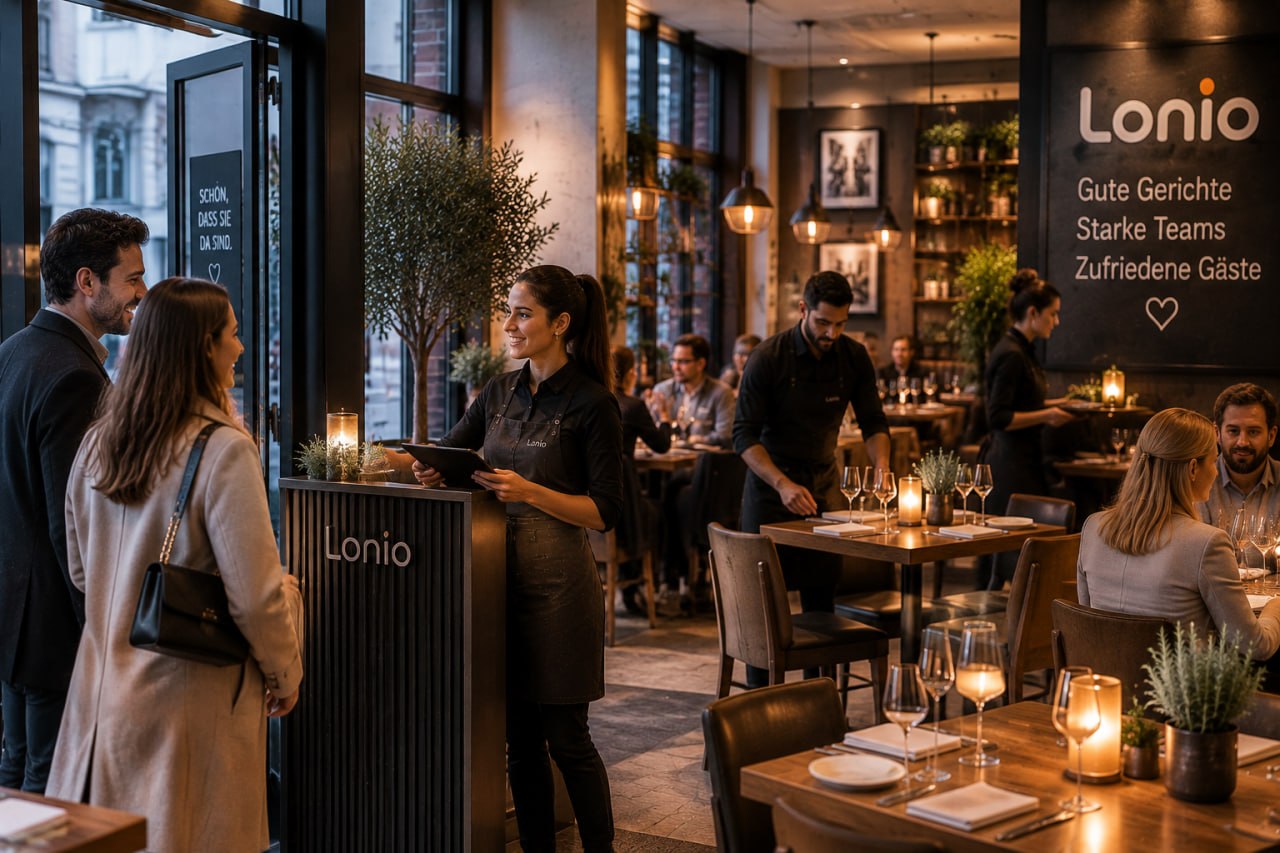
A restaurant table plan is more than a picture of the dining room. When reservations, occupancy, open orders and table time are visible on the same live map, the plan becomes a decision tool for hosts, servers and managers. The team can quickly see which tables are ready, which have an upcoming booking and how moving one party changes the remaining capacity.
How is a digital table plan different from a printed map?
A printed plan shows a fixed layout. It cannot show whether a table is occupied, waiting for cleaning, linked to an open bill or reserved in forty minutes. A digital plan connects every table to reservations, orders and service status, so the whole front-of-house team works from the same current information.
Core table statuses
- Available and ready to seat
- Reserved for a future time
- Guests seated and table occupied
- Bill requested or payment in progress
- Needs cleaning or resetting
- Temporarily out of service
Status labels should remain limited and operational. Every status needs a clear next action; too many colours or vague labels slow the team down.
How to build the first floor plan
- Define areas such as the main room, terrace, bar, private room and outdoor seating.
- Give every table a number and realistic base capacity.
- Mark tables that can be combined.
- Reflect real walkways, fixed furniture and physical constraints.
- Assign service sections or staff responsibility zones.
- Test bookings, table moves and combined-table scenarios before launch.
Real capacity is not the same as the number of seats
A restaurant with 60 chairs cannot always accept 60 additional guests. Party sizes, upcoming reservations, average dining time, table combinations and the current workload of the team determine usable capacity. The table plan should help staff use empty seats without risking the next reservation or overloading one service section.
Guest arrival and seating workflow
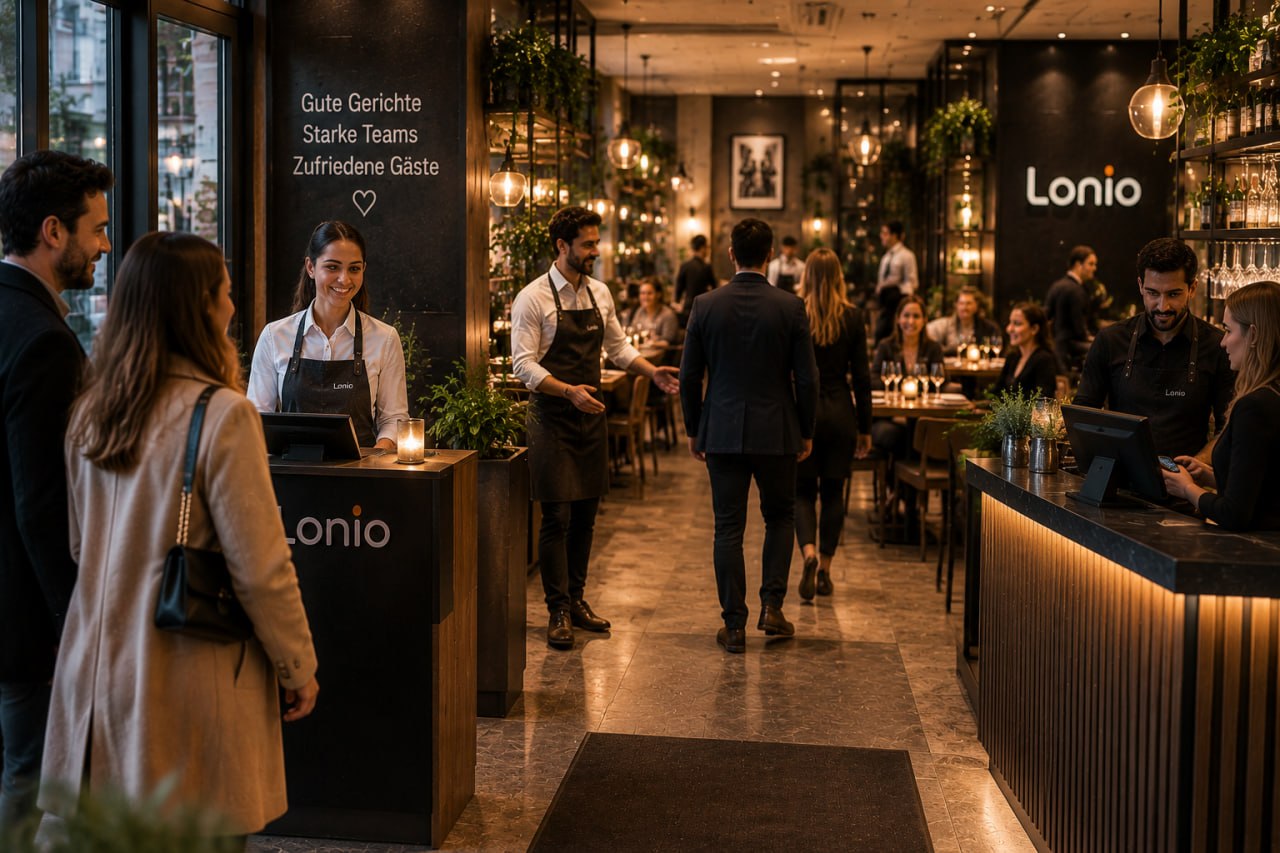
The host stand connects reservations, walk-ins, the table plan and the responsible service team. Before each service period, staff should review upcoming bookings, large parties, special requirements and tables that are ready. When guests arrive, the booking or walk-in record is found, the actual party size is confirmed, arrival time is recorded and a suitable table is chosen based on capacity and the next reservation.
- Change a booking to arrived only when the guests are physically present.
- Define how long a late booking is held and how the guest is contacted.
- Record early arrivals and walk-ins in the same waitlist and floor plan.
- Notify the responsible server or section after seating.
- After payment, move the table to needs cleaning before marking it ready.
If the party moves later, the booking, guest count, open order, notes and service owner must move together. Releasing the original table without transferring the full context can lead to seating another party incorrectly or leaving an order behind.
Linking reservations to tables
A reservation may be linked to a specific table, a preferred area or simply an appropriate capacity. Some restaurants assign the final table only when guests arrive because the live floor situation changes. In either model, the reservation system and table plan must use the same underlying data.
Managing walk-ins
Walk-in guests should appear on the same plan and waitlist. By seeing the next reservation time, the host can decide whether a table is suitable for a short drink or has enough time for a full meal. The aim is to assign the first suitable table to the right party, not merely the first table that becomes free.
Combining and separating tables
Large parties may require several tables to be joined. The system should preserve the relationship between combined tables so the order, bill and capacity are not counted twice. After the party leaves, the combined unit must be separated back into its original tables and statuses.
Moving guests after an order has been opened
If guests move from the terrace into the dining room, the open order must not remain on the old table. A proper table transfer moves the order, guest count, notes, reservation and assigned server. A transfer history helps managers investigate mistakes and prevents duplicate or missing orders.
Dividing the dining room into service sections
Service sections help each server see their tables and help the host understand how a new party affects workload. Sections should be designed around table distance, guest capacity, walking routes and service type rather than an equal number of tables.
Balancing real workload
Two servers may each have five tables but very different workloads. One may have a large party ordering, while the other has small tables close to payment. Guest count, service stage, open orders, bill requests and large groups should all inform the next seating decision. The host needs to consider both physical capacity and team capacity.
Transferring responsibility during the shift
During breaks, shift changes or an unexpected large party, a table may be reassigned. The transfer should preserve the new owner, open orders, guest requests and payment status. An occupied table should never remain on the plan without a responsible user or section.
Table duration and service flow
Displaying how long a table has been occupied helps the team identify delays in ordering, kitchen production, clearing or payment. The goal is not to pressure guests. It is to find tables that are waiting for the next operational action. Duration must always be interpreted in the context of service type and the actual guest experience.
Practical scenario
A party of six arrives early. Two two-person tables are free, but one is reserved in forty minutes. The host sees that two three-person tables in another section will become available soon. The party is added to the waitlist and, once the tables are reset, the two tables are combined. The booking, order and service owner remain linked to the party throughout the move.
Useful table-plan reports
- Average table occupancy time
- Capacity utilisation by hour
- Sales by table or dining area
- Number of table moves and combinations
- Walk-in waiting time
- Tables left unused during peak periods
Common setup mistakes
- Using table numbers that do not match the physical room
- Recording unrealistic table capacities
- Failing to define combinable tables
- Missing cleaning and out-of-service statuses
- Keeping reservations separate from the floor plan
- Not training staff to transfer both the table and its open order
How Lonio supports the workflow
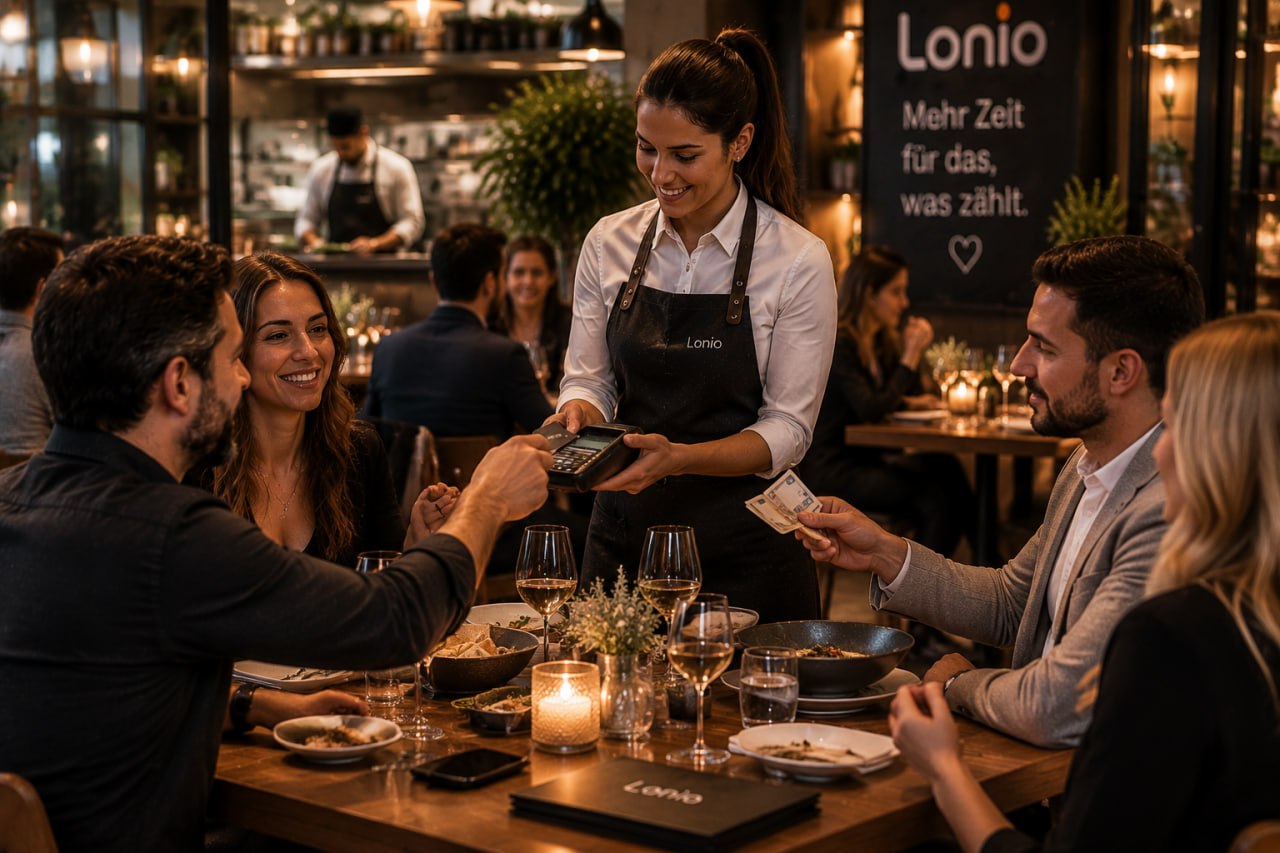
The Lonio restaurant and café solution connects reservations, table planning, orders and payments as one continuous flow. Table service continues in the POS, while sales and capacity information can be reviewed in reports.
Conclusion
A digital table plan creates value when it matches the real dining room and the team's operating process. Clear statuses, realistic capacity, shared reservation data, walk-in management and complete order transfers help front-of-house staff make faster decisions with fewer errors.
Frequently asked questions
Must a reservation be assigned to a specific table in advance?
No. It may be linked to an area or suitable capacity, with the final table selected on arrival.
When should a guest be marked as arrived?
When the guest is physically present, not merely at the scheduled booking time.
How should service sections be assigned?
Consider table location, guest count, service stage and open orders together.
What moves when guests change tables?
The reservation, guest count, open order, notes and service owner should all move together.